Start here
From nothing to your first hello. Eight steps, each with one thing to do. Every command has a copy button.
No subscription and a strong graphics card? Try the free local path. Go to the local path.
-
1Get Claude Pro or ChatGPT Plus
Your agent runs on an AI plan you pay for yourself. Already have one? Use it. If not, pick one: Claude Pro at claude.com or ChatGPT Plus at chatgpt.com. Either is about $20 a month if billed monthly. Nightforge itself is free.
Prices read on 2026-11-27 at claude.com/pricing and 2026-11-28 at chatgpt.com/pricing. See what it costs.
-
2Download Nightforge and unzip it
Download the zip file. Unzip it somewhere you will keep, like Documents\Nightforge. Inside you will find “Start Nightforge”, a README.txt, a tools folder and the house folder.
Download NightforgeAbout 12 MB. Windows 10 or 11.If Windows SmartScreen warns you about the download or about Start Nightforge: choose “More info”, then “Run anyway”. Only do this for the file you got from nightforge.live.
-
3Double-click Start Nightforge
Double-click “Start Nightforge” in the folder. If it asks to install Node.js, say Yes. Node.js is a free helper that Nightforge runs on, and it installs with Windows’ own installer. Windows may ask you to allow it. Then Nightforge opens in its own window.
If the window does not open, double-click Start Nightforge again.
-
4Name your house and pick a look
The welcome has five steps. In step 1, Your house, name your house and enter your own name. In step 2, Its look, pick a look you like.
-
5Who moves in: install Claude or ChatGPT and sign in
Step 3, Who moves in, picks the AI that powers your crew member: Claude or ChatGPT. With Claude: if Claude Code is already on your PC, it says so in green and you can go on.
If not, press “Install it for me”. A PowerShell window opens and runs Anthropic’s official install line. When it asks, sign in with your own Claude account. Then press “Done, check again” and it turns green.
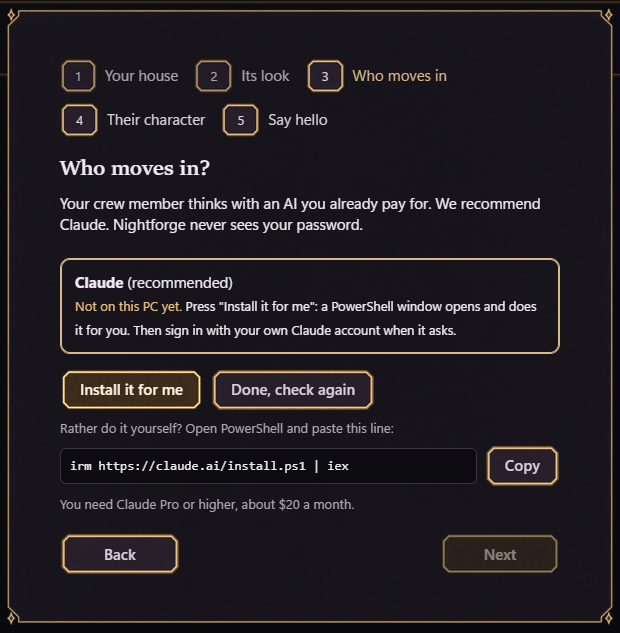
Claude is not on this PC yet. 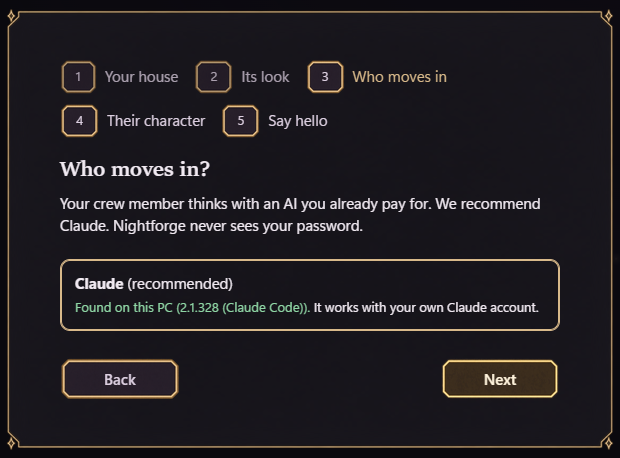
After “Done, check again”, Claude is found. Prefer to do it yourself? Open PowerShell: press the Start button, type PowerShell, and press Enter. Paste this line and press Enter. It shows no progress while it downloads. That is normal.
irm https://claude.ai/install.ps1 | iexOfficial page: code.claude.com/docs/en/quickstart. Claude Pro or higher is needed.
If it says ‘irm’ is not recognized, you opened Command Prompt. Close it and open PowerShell instead.
If it says ‘claude’ is not recognized after installing, close PowerShell and open it again. If that does not help, restart the PC.
Using ChatGPT instead? Pick ChatGPT in the same step and press “Install it for me” (it says “Sign me in” if OpenAI’s Codex is already on your PC). A PowerShell window installs Codex, then your browser opens so you can sign in with your own ChatGPT account. Then press “Done, check again” and it turns green.
Prefer to do it yourself? In PowerShell, paste this line and press Enter, then type
codex loginand press Enter.irm https://chatgpt.com/codex/install.ps1 | iexOfficial page: chatgpt.com/codex. A ChatGPT agent saves and changes files only inside its own folder, but can read files elsewhere on your PC.
Have a model on your PC through Ollama? This step offers it too. See the local path.
-
6Make their character
Step 4, Their character. Give them a name, a job, a face and a voice. Press Hear it to listen to a voice before you pick it. The first time, press Get voices and Nightforge sets the voices up for you (about 2 GB, a couple of minutes). Then pick a personality and up to four traits.
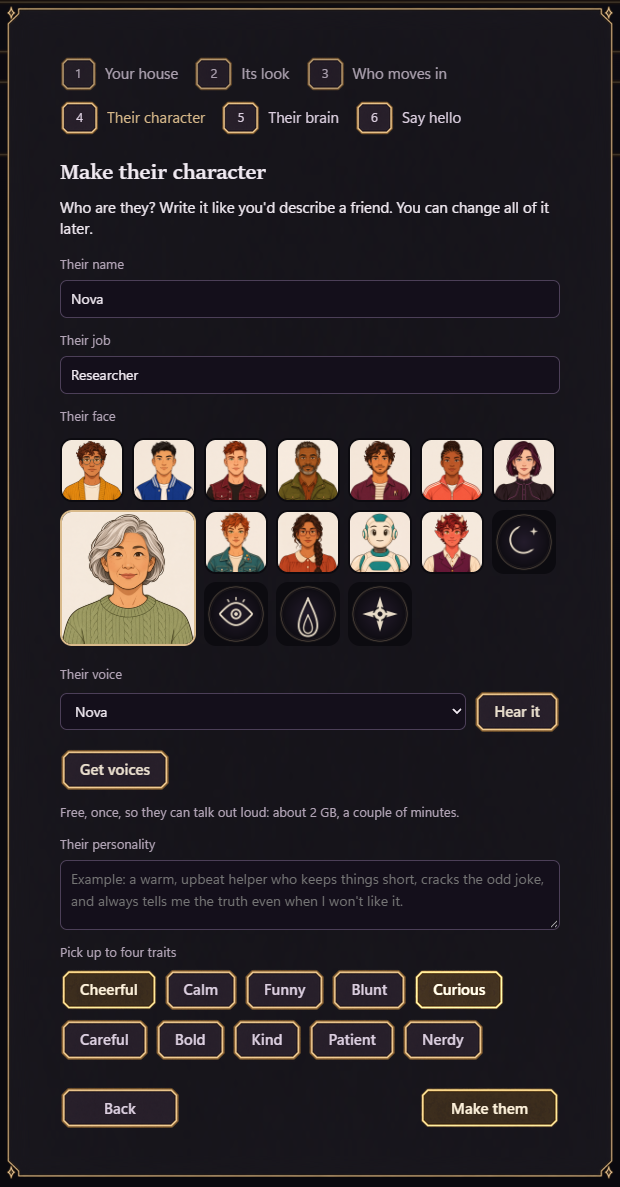
Their character, with their face and their voice. -
7Their brain
Step 5, Their brain. Everything your crew member learns is kept as notes on your PC. Press Install Obsidian for me to get Obsidian, a free app that opens those notes like a map, or press Skip and add it later from their card on the Crew page.
-
8Say hello and pick a first job
Step 6, Say hello. Pick one of three ready first jobs: Tidy my Downloads folder, Write my morning note, or Look something up for me. Then choose how you want to talk to them: type only, push to talk with your own key, or open mic. You can change this later in Settings.
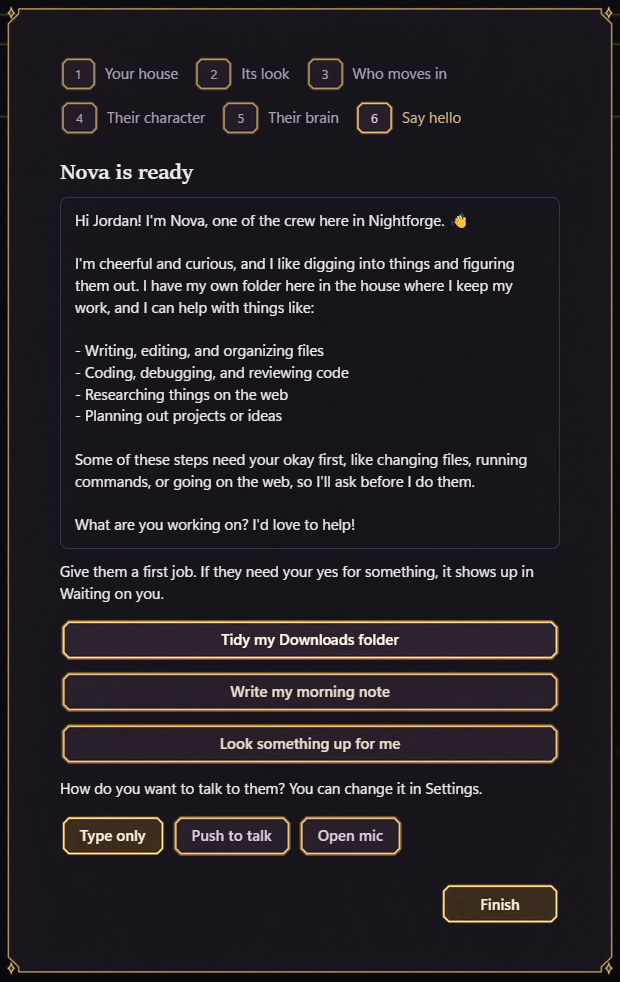
The three first jobs, and how you want to talk. -
9Answer Yes or No in Waiting on you
Your agent asks before every step that changes something: saving or changing a file, running a command, looking outside its own folder, or going on the web. The ask shows up in Waiting on you, with a Yes and a No. Nothing happens until you answer.
For example: “Nova wants to: Save morning-note.md in Nova’s folder.” Press Yes to let it, or No to skip that step.

An ask in Waiting on you.
Stuck?
Ask in the Discord. Tell us which step you are on.